
 11
11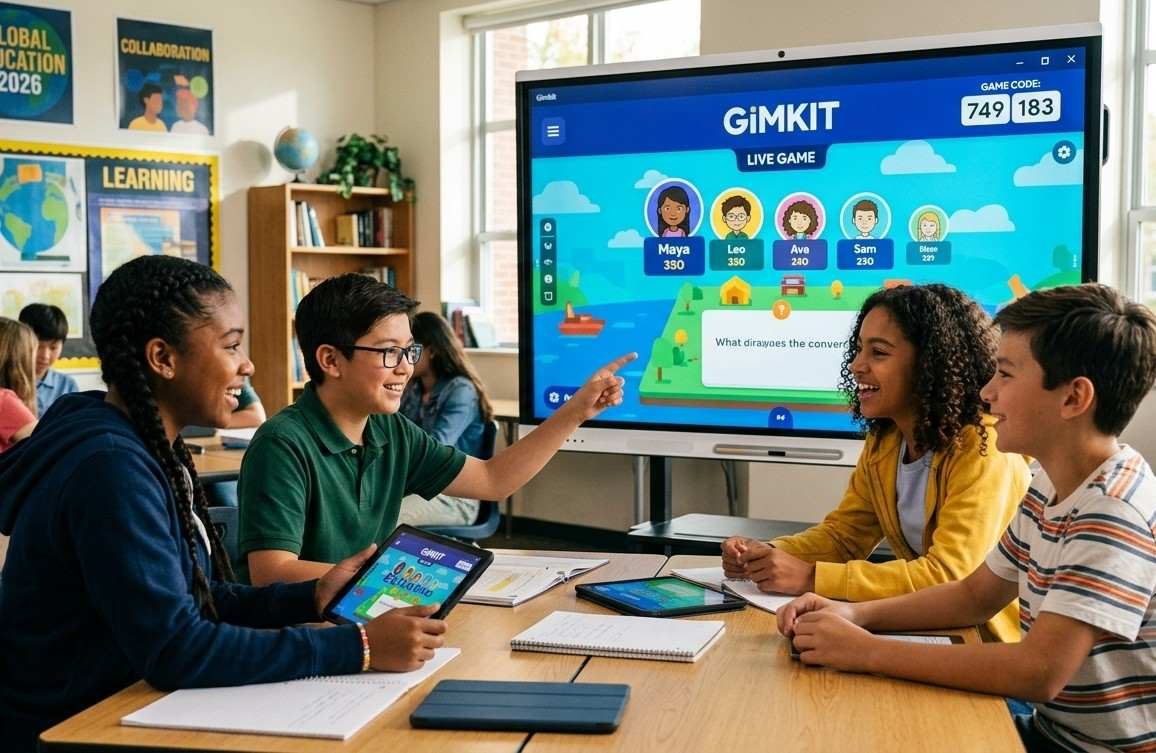
The number on your classroom screen may look like a permanent invitation, but it has a remarkably short life. Gimkit codes are temporary access keys generated when a teacher or another authorized host launches a live game. They commonly appear as short numeric codes, often six digits, although formats and joining options can change as the platform evolves.
Once the host ends the session, the associated number normally stops working. That is why old lists rarely deliver what they promise. There is no universal master code that unlocks every quiz, nor is there an official collection guaranteed to remain active around the clock. I’ll explain how to find legitimate access, join a live session, discover esports-themed Kits, and solve common problems without risking your privacy.
A game code connects a player to one specific, host-controlled lobby. A teacher selects or creates a Kit, chooses an available game mode, configures the activity, and starts the session. Gimkit then produces the access details that students need.
The host may display the number on a classroom projector or share it through Google Classroom, Microsoft Teams, email, or another school-approved learning system. Students enter it on the official Gimkit Join page, submit a name or approve a nickname, and wait for the host to begin.
I think of the number as a temporary room key. It identifies the correct activity, but it is not a password for a student account. It also does not create unlimited access to future sessions.
All three methods can lead to the same live lobby, but they handle entry differently. A game code requires the student to type the displayed number. A direct join link opens the appropriate page automatically, while a QR code lets mobile users scan their way into the session.
Gimkit’s official joining instructions recognize game codes, direct links, and QR entry as legitimate options. A teacher may also use class-based access that automatically recognizes signed-in students. Assignment links differ because they can support independent work instead of a synchronized game.
Begin by getting the current access information directly from the teacher, streamer, or event organizer. Do not rely on an old screenshot or a blog claiming to maintain a permanent list.
Open gimkit.com/join in an updated browser. Enter the number exactly as the host displays it and check every digit before continuing. You may then need to type your name, approve a nickname, or sign in through a managed classroom account. After Gimkit accepts your entry, remain in the lobby until the host starts the game.
Students can generally join through Chromebooks, Windows computers, Macs, tablets, and smartphones. A stable internet connection matters because live gameplay continuously exchanges information between the device and the session.
Many live games allow guest participation, although the host’s settings determine the exact process. Some students can simply enter a name, while others receive a nickname selected through the platform’s generator.
Teachers who use Gimkit Classes may require students to sign in. Instant Join can make entry faster for recognized class members by eliminating the need to type a number or name manually. Students should follow their teacher’s directions and never enter school credentials on an unofficial website.
The safest source is the person currently hosting the activity. In a US classroom, teachers may show the number on an interactive board or distribute a direct link through the school’s learning management system. These methods offer the best chance of receiving valid, authorized access.
Public livestreams provide another possibility. Educational creators sometimes host open sessions on YouTube Live or Twitch and display joining information on screen. Search for terms such as “Gimkit live game” or “live Gimkit quiz,” then confirm that the broadcast is happening in real time. A code from a recorded stream will probably have expired.
Join only when the organizer openly invites viewers. Guessing combinations or entering a private classroom activity can disrupt the lesson and violate the host’s rules.
No official live game number is guaranteed to work 24 hours a day. An active lobby depends on its host. Even legitimate access shared during a public event can become invalid when the game starts, reaches its player limit, blocks late arrivals, or ends.
Websites promising permanent random access often recycle expired numbers or invent combinations that were never valid. If you want an activity outside class hours, ask your teacher for an assignment link or look for an authorized Creative experience that remains publicly available.
Gimkit is primarily a game-based learning platform, but its competitive format works well for esports trivia. Teachers and students can search available community content for topics such as esports history, competitive gaming, League of Legends, Valorant, Rocket League, and gaming terminology.
Finding a public Kit does not automatically grant entry to another person’s live game. A Kit contains questions, while a live lobby requires a host. An educator can select an appropriate quiz deck, review its questions for accuracy and classroom suitability, and then launch a new session for students.
For US schools and gaming clubs, an esports quiz can support media literacy, teamwork discussions, technology lessons, or an end-of-unit review. Teachers should check user-created material before presenting it because community Kits may contain outdated statistics or age-inappropriate questions.
The most common explanation is that the session has ended. The host may also have closed the lobby, started a restricted game, changed activities, or prevented late entry. A typing mistake, unstable connection, or incorrect account can cause the same problem.
Compare the number with the host’s screen, refresh the official joining page, and verify your internet connection. If your class uses managed accounts, make sure you signed in with the correct school profile. When the error continues, ask the host for a new code or direct link. Only that person can confirm whether the lobby remains available.
A third-party generator cannot create authorized access to someone else’s live classroom. Avoid websites, browser extensions, and mobile downloads that promise unlimited entry, bonus money, automatic wins, secret redeem codes, or permanent live sessions.
These services may expose users to malicious advertising, phishing, credential theft, or malware. They can also encourage behavior that disrupts real classes. I recommend using only the official platform and access information supplied by an authorized host.
A live number generally works only while its associated session accepts players. It may expire when the host closes the lobby or ends the game, so there is no dependable universal duration.
Usually not. Old access information belongs to a previous session. Ask the teacher or organizer for the number connected to the current game.
Hosts do not normally choose a number manually. Gimkit generates the access details after an authorized user selects a Kit, configures a game mode, and launches the lobby.
Yes. If the host provides one, scan it with a compatible mobile device. You can also request a direct join link when typing the number is inconvenient.
I understand why an always-active list sounds appealing, especially when students want to join a public competition quickly. In practice, Gimkit codes are most useful because they are temporary and controlled by the person running the activity. That system connects the right players while limiting unwanted access after a session ends.
Get the current information from a teacher, authorized streamer, or verified event organizer. Use the official join page, confirm that the lobby is still open, and avoid generators or suspicious downloads. With those precautions, students can enjoy esports trivia, classroom reviews, and competitive learning without unnecessary security risks.